
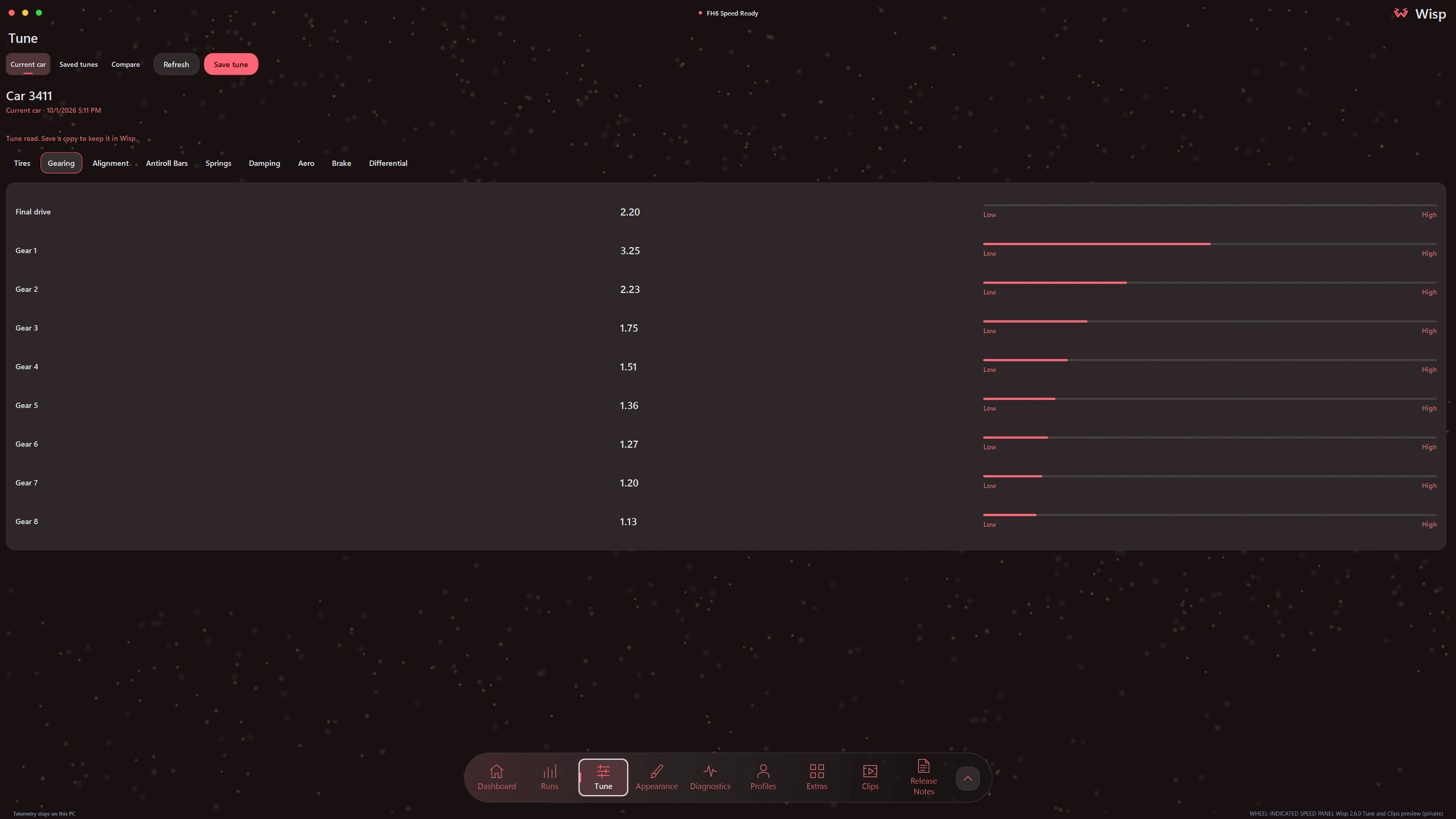
Open Tune to read the current car
Choose Current car in Tune. Wisp reads the fitted setup and groups its settings like Forza's tuning menu. Use Refresh after making changes in the game.
- Tires: front and rear pressure.
- Gearing: final drive and the car's available gears.
- Alignment: camber, toe and caster.
- Antiroll Bars: front and rear stiffness.
- Springs: spring rates and ride heights.
- Damping: rebound and bump settings.
- Aero: front and rear downforce.
- Brake: balance and pressure.
- Differential: acceleration, deceleration and center balance where applicable.
Readable adjustable settings show their place between Low and High. Wisp labels settings that aren't adjustable or don't apply to the car.
Saved tunes
Give each setup a name and notes
Choose Save tune, enter a name and add an optional description. Wisp checks the current setup before saving the copy. Use descriptions to record what you were trying, the circuit or the change you want to test next.
Browse Saved tunes by newest first, oldest first, name A–Z or name Z–A. Select a tune and choose Load to view it in Wisp, or Edit details to change its name and description. Use Delete to remove a saved tune you no longer need; copies attached to runs are kept. Loading a saved tune opens its values in Wisp; make tuning changes in Forza.
Compare
Put two setups beside each other
Select Tune A and Tune B in Compare. Choose saved tunes, or use Read current car to compare the fitted setup with a saved one. Each category shows both sets of values, highlights changes and gives the difference as B minus A. Distinct colors keep the two tunes easy to follow.
Save a setup before making a change, then save the next version under another name. Comparing them gives you a record of the settings behind each test. Lap review and run graphs help you compare what happened on the road.
Run attachments
Keep the tune with the run
Before recording a run, choose None, Current car or a saved tune. Wisp checks the tuning values when recording starts. A selected saved tune must match the current setup. If the tune cannot be verified, recording starts without the tune attachment and Wisp explains why.
The run keeps its own copy of the tune, name and description. Open that attachment from Runs or compare the tunes attached to two runs. Editing or deleting the saved tune later leaves the run's copy unchanged.