
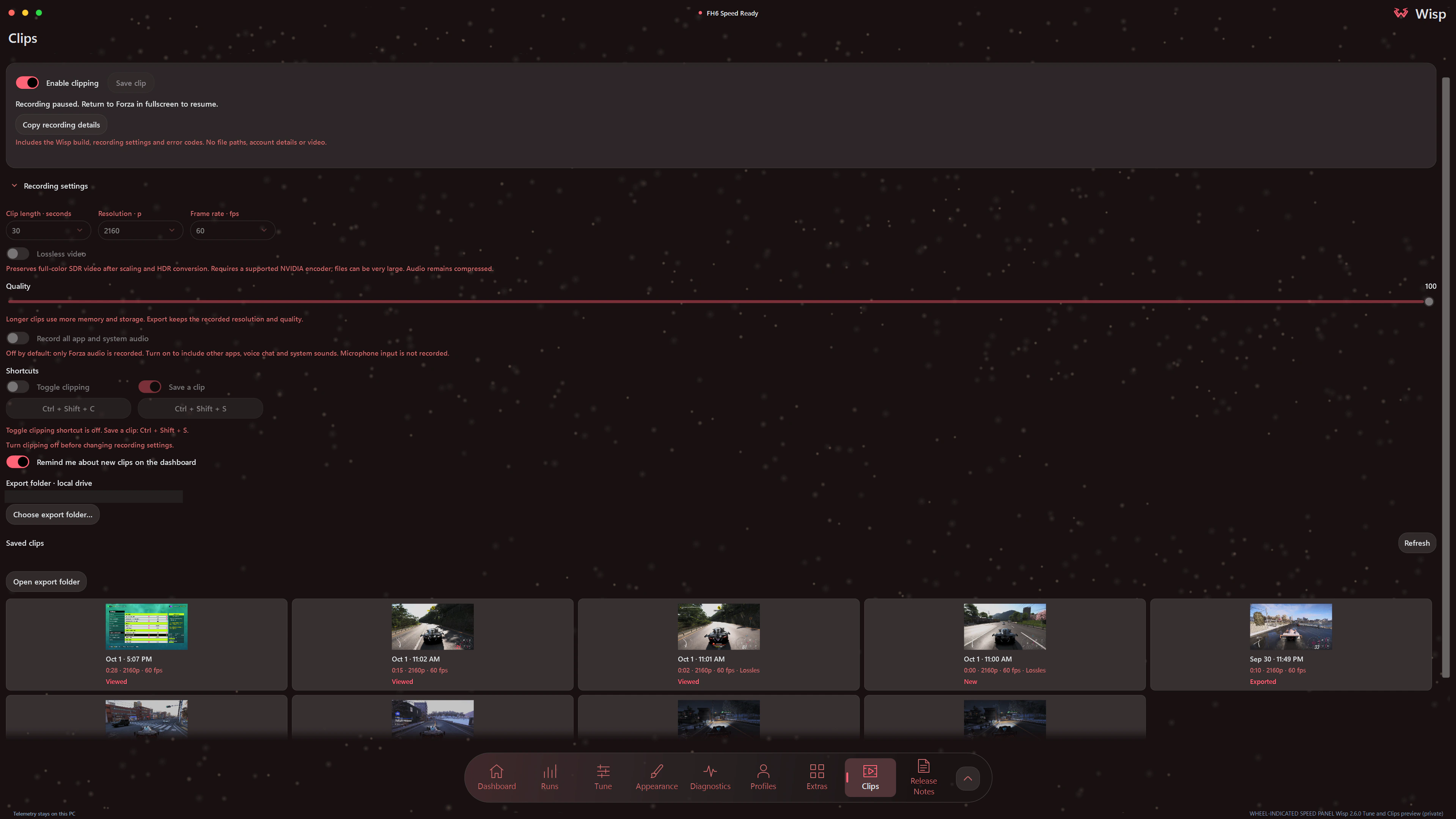
Turn clipping on, then keep a moment
- Open Clips in Wisp and choose your recording settings.
- Turn on Enable clipping and return to fullscreen or borderless fullscreen Forza.
- Choose Save clip or use your enabled save shortcut after the moment you want to keep.
- Select the saved clip in Wisp to watch it, then choose Export clip for an MP4 copy.
Clips record everything visible on Forza's screen, including the Wisp HUD and notifications. Switching away from Forza or minimizing it pauses recording and keeps available footage ready to save. Saves contain up to your chosen length of available history.
Recording settings
Choose length, resolution and frame rate
Clipping starts off. Its default settings are 60 seconds, 1080p, 60 fps and quality 75. Turn clipping off before changing recording settings.
| Setting | Choices | Default |
|---|---|---|
| Clip length | 30–300 seconds, in 30-second steps | 60 seconds |
| Resolution | 360p, 480p, 720p, 1080p, 1440p or 2160p | 1080p |
| Frame rate | 30 or 60 fps | 60 fps |
| Compressed video quality | 10–100 | 75 |
| Lossless video | On or off; replaces the quality setting | Off |
| Record all app and system audio | Forza audio only, or all app and system audio | Forza only |
| Toggle clipping shortcut | Enable it and choose a key combination | Off; Ctrl+Alt+F8 when enabled |
| Save a clip shortcut | Enable it and choose a key combination | Off; Ctrl+Alt+F9 when enabled |
| Shortcut sounds | Play sounds for shortcut results | On |
| New clip reminders | Dashboard reminders on or off | On |
| Export folder | Choose a default local folder; change the destination in Save As | No folder selected |
Longer, higher-resolution recordings use more storage. Ultrawide and 16:10 recordings keep their proportions with black bars. Export keeps the recorded resolution and quality, so choose these settings before your drive.
Audio and video
Record game audio or include other apps
By default, Clips records Forza's audio. Turn on Record all app and system audio to include other apps, voice chat and system sounds. Microphone input is not recorded. Wisp tells you when game audio was unavailable for a saved clip.
Lossless video
Lossless video preserves full-color SDR video after scaling and HDR conversion. It requires a supported NVIDIA encoder, and files can be very large. Audio stays compressed. Quality 100 is still compressed video; use the separate Lossless video switch for this mode.
Lossless recording keeps up to your chosen duration within Wisp's size limit. Available history depends on the video and free space. A save shortened by that limit shows its actual duration and a size-limit message.
Saved clips
Watch it in Wisp. Export a copy when you're ready.
The gallery shows thumbnails, date, duration, resolution and frame rate, with New, Viewed and Exported labels. Use Refresh to update the gallery, or browse older clips with Previous and Next. New clip reminders appear on Dashboard and can be turned off in recording settings.
Opening a clip prepares it paused. Use Play and Pause, drag the timeline, adjust volume or replay it after it ends. Arrow keys seek one second; Page Up and Page Down seek ten. Close player returns to the gallery.
Export clip opens Save As so you can choose the MP4 filename and destination. The export retains the recording's quality and keeps your saved copy in Wisp. Existing files are not overwritten. You can choose and open a default export folder below the player; a folder isn't needed to save or watch clips in Wisp.
If a save is unfinished, turn clipping off and choose Recover unfinished saves to check for footage Wisp can recover. Dismiss notice clears the reminder and keeps any retained footage.
For the driving data behind a moment, review a recorded lap or compare run graphs.