
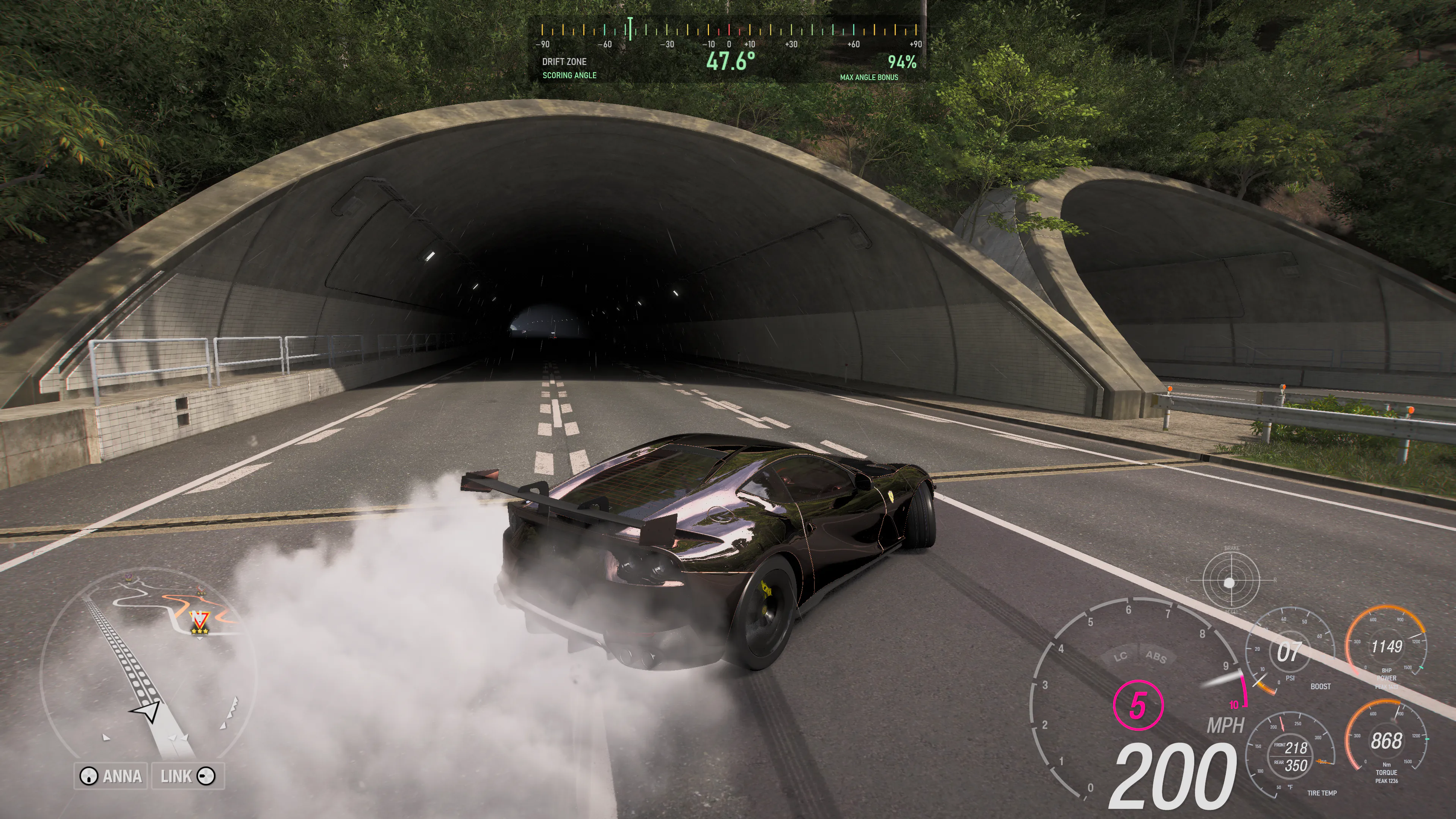
Read the slide while you drive
Drift angle describes the difference between the car's forward direction and its direction of travel. It is different from steering angle or wheelspin. The marker moves across the scale as the car changes direction, while the large number keeps the angle easy to read.
In Drift Zone angle bonus mode, red marks angles outside the verified scoring-angle range. Yellow moves toward green as the angle bonus increases. The green ceiling marker sits near 60°; beyond it, yellow means more angle adds no further angle bonus. The state text explains the reading alongside the color.
Getting started
Enable and position the drift gauge
- Connect FH6 to Wisp. Install Wisp on the same Windows PC as the game. Set FH6 to Fullscreen, enable Data Out in HUD and Gameplay, and use the same Data Out port in FH6 and Wisp. The setup walkthrough covers the connection. Check that live readings reach Dashboard before setting up the gauge.
- Turn on the gauge. Open Appearance > Gauges and enable Show drift angle gauge.
- Choose Guidance. Select Drift Zone angle bonus for the verified angle-bonus profile, or Custom target to choose an angle and target zone width.
- Make it readable. Adjust Gauge size. For bright sky, enable Dark mode to shade the ticks and text, or add a Black background and adjust its opacity.
- Place and lock it. Use Edit HUD layout to move the gauge, then lock the layout before driving. Reset position returns it to the top center of the screen. Keep the road and the game's score visible.
Drift Zone angle bonus
What does the percentage mean?
The verified Drift Zone scoring-angle range starts at 10°. The angle bonus increases until 59.4°, where it reaches its maximum. Wisp compares that angle multiplier with its maximum and displays the result as a percentage.
| Drift angle | Share of maximum angle bonus |
|---|---|
| 10° | 75% · start of the scoring-angle range |
| 20° | About 80% |
| 30° | About 85% |
| 40° | About 90% |
| 59.4° | 100% · the angle-bonus ceiling |
Ordinary 20–40° drifts already use roughly 80–90% of the maximum angle bonus. The angle bonus reaches its ceiling at 59.4°. Balance angle with speed and your line through the zone.
These values describe the Drift Zone angle component. Use them alongside speed, line, road contact, and the score shown by FH6 when comparing runs.
For the distance and speed terms, eligibility checks and worked examples, read how drift scoring works in Forza Horizon 6.
Is the target different for every car?
The verified angle-bonus profile is shared across cars on the supported game build. Different cars and tunes can hold different angles and speeds through the same corner. Use the gauge to understand your angle, then compare your runs in FH6.
The scoring evidence records which game versions were checked and the limits of those checks.
Your practice reference
Choose a custom target for a car and corner
Custom target lets you select an angle and a target zone width. The green band marks that chosen range, and the gauge reports whether you are below, on, or over your target.
Pick a familiar corner, keep the car and tune consistent, and practice a controlled slide within your chosen band. Wisp's Runs workspace can help you review throttle, wheel speed, ground speed, and G-force afterward. Use FH6's score and your driving line alongside those readings when comparing attempts.
Windows 10 and 11
Steam and Xbox app / Microsoft Store support
The drift gauge supports both Windows PC editions and needs live FH6 Data Out telemetry. Wisp checks HUD compatibility and the Drift Zone scoring profile separately. A working HUD does not by itself confirm that the game's angle-bonus profile is supported.
When the scoring profile is unavailable, Wisp shows ANGLE ONLY without a bonus percentage or scoring colors. You can choose Custom target for your own reference. If Wisp cannot validate HUD compatibility, follow the connection-status advice first; changing guidance mode does not restore a hidden HUD.
Keep Wisp up to date and check release notes for compatibility changes. Xbox app / Microsoft Store support refers to the Windows PC edition.
Reading the gauge state
Why is the angle hidden?
Low speed
Both guidance modes hide the angle, marker, and bonus below 5 mph ground speed (about 8 km/h). Tiny movements on a slope can produce a large but unhelpful angle while the car is nearly stationary. This threshold uses the car's ground speed.
Angle-only guidance
An unavailable scoring profile removes the bonus percentage and scoring colors, not the measured angle. Keep Wisp up to date, or select Custom target to use your own reference. HUD compatibility must still pass for the overlay to appear.
No data, or the overlay is hidden
Check Wisp's connection status for game detection, incoming telemetry, and HUD visibility. Confirm FH6 is in Fullscreen and Data Out is enabled with the matching port. The Help page covers connection and display troubleshooting.