
Save completed laps automatically
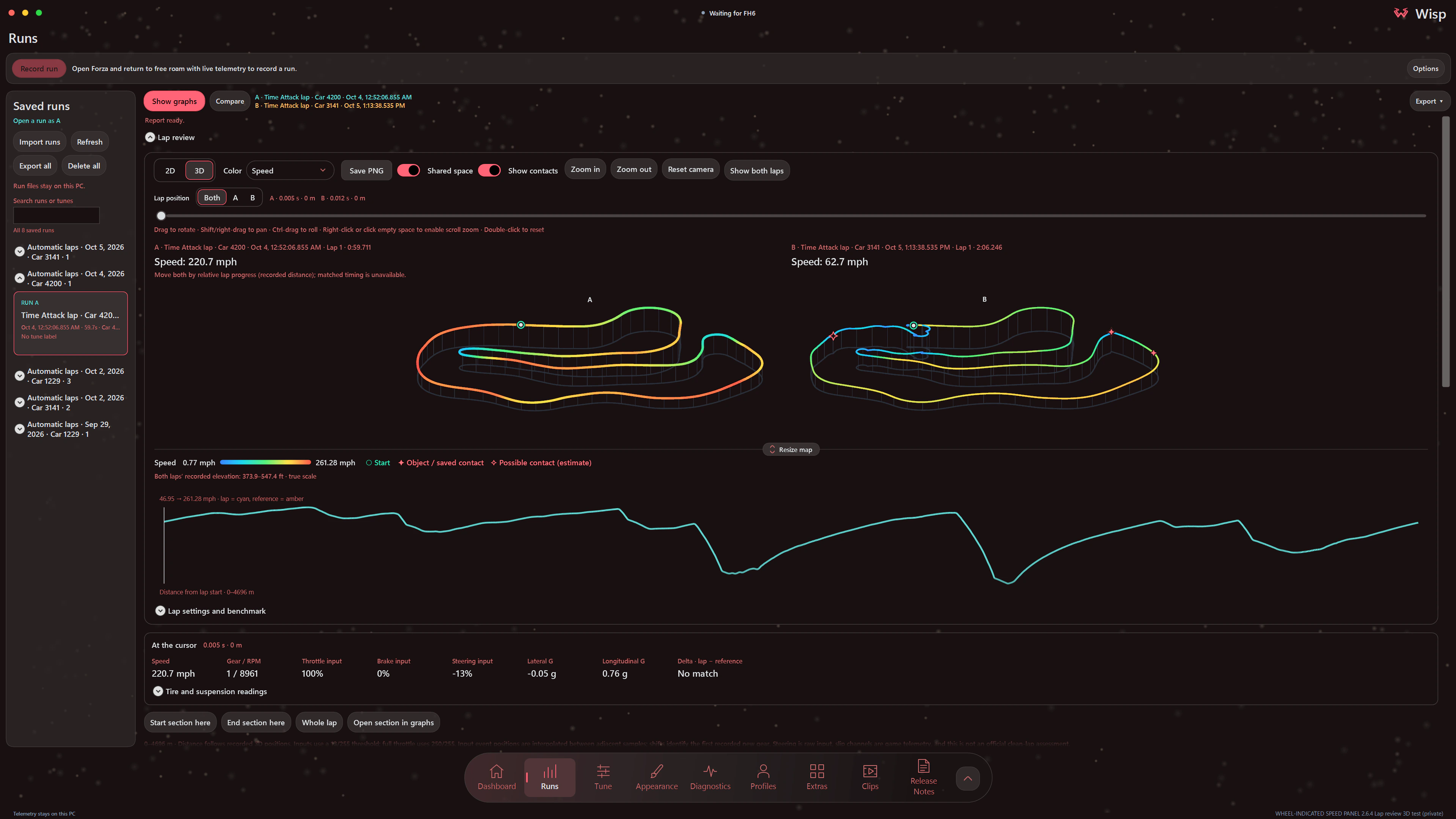
Open Lap review in Runs and enable Save completed laps automatically. It starts off and uses the lap timing mode selected in HUD settings. Completed laps save locally while Wisp is running; you can leave the lap delta and track map overlays hidden.
Choose Race / Rivals laps or Time Attack for the session. Wisp waits for the start line and saves completed laps. Interrupted laps are skipped. Existing run recordings with position and timing data can also be opened for review. Automatic laps are grouped by day and car; expand a group to choose a lap. Each new lap's name includes its local recording time.
2D and 3D
Explore the line and its elevation
Keep the 2D map or switch to 3D to rotate, pan and zoom the recorded path. Height and horizontal distance use the same physical scale. Resize the map and choose Save PNG to keep the current view, channel legend and cursor values.
In 3D, enable optional Shared space to place two laps beside each other. Click either track to focus it, then choose Show both laps for the overview. Both follows matching positions when available, or relative recorded-distance progress when timing cannot be matched. Choose A or B to inspect one lap while keeping the other cursor fixed. A visual comparison does not make unmatched time delta or section statistics available.
The lap-review guide covers mouse and keyboard controls, reference laps and saved-run compatibility.
Your lap and a reference
Compare against a lap you want to keep
Select Your lap and Reference lap. Choose another saved run as Run B to compare its laps, or use Pin this lap as benchmark to keep a reference for later reviews. Choosing Run B takes priority over the pin. Wisp uses a pinned benchmark only when it matches the car, timing mode and route; use Unpin benchmark to remove the pin.
Time delta compares elapsed time at matching positions: negative is ahead and positive is behind. Time-delta and section comparisons need complete laps from the same car and timing mode, with routes that match. Wisp leaves delta unavailable where telemetry or the position match is incomplete.
Map and graph
Follow the line and inputs with one cursor
Move the cursor to see speed, gear and RPM, throttle, brake, steering, lateral and longitudinal G, and the time delta. The wheel readout shows all four tires' temperature, slip and suspension values at the same point.
Choose the map and graph channel you want to inspect. The map legend shows its units and numeric range, with a common color scale for two laps in Shared space:
- Speed and time delta.
- Throttle, brake and steering input.
- Lateral, longitudinal and combined G.
- Engine RPM and gear.
- Horsepower, torque and elevation.
- Tire temperature, tire slip ratio, raw tire slip angle and suspension travel, with a wheel selector.
Brake and steering are the game's inputs. Suspension shows normalized travel, and tire slip angle uses the raw game value.
Show contacts distinguishes recorded breakable-object evidence and saved annotations from hollow Possible contact (estimate) markers inferred from movement. These estimates can be wrong, and the markers do not identify every collision.
Section review
Inspect a corner or a complete lap
Move the cursor and choose Start section here, then End section here. Compare the time between those positions with the reference, together with entry, minimum, exit and average speed.
Section statistics also show driven distance, recorded coverage, full throttle, braking and coasting, peak brake input, steering and G ranges, RPM, shifts and mean wheel readings. The event list marks brake application and release, throttle pickup and gear changes.
Choose Whole lap to reset the section or Open section in graphs for the wider Runs graph view. Use Tune attachments to keep a checked setup with a manually recorded run, and Clips to save the gameplay alongside your driving data.