1. Enter the Data Out settings
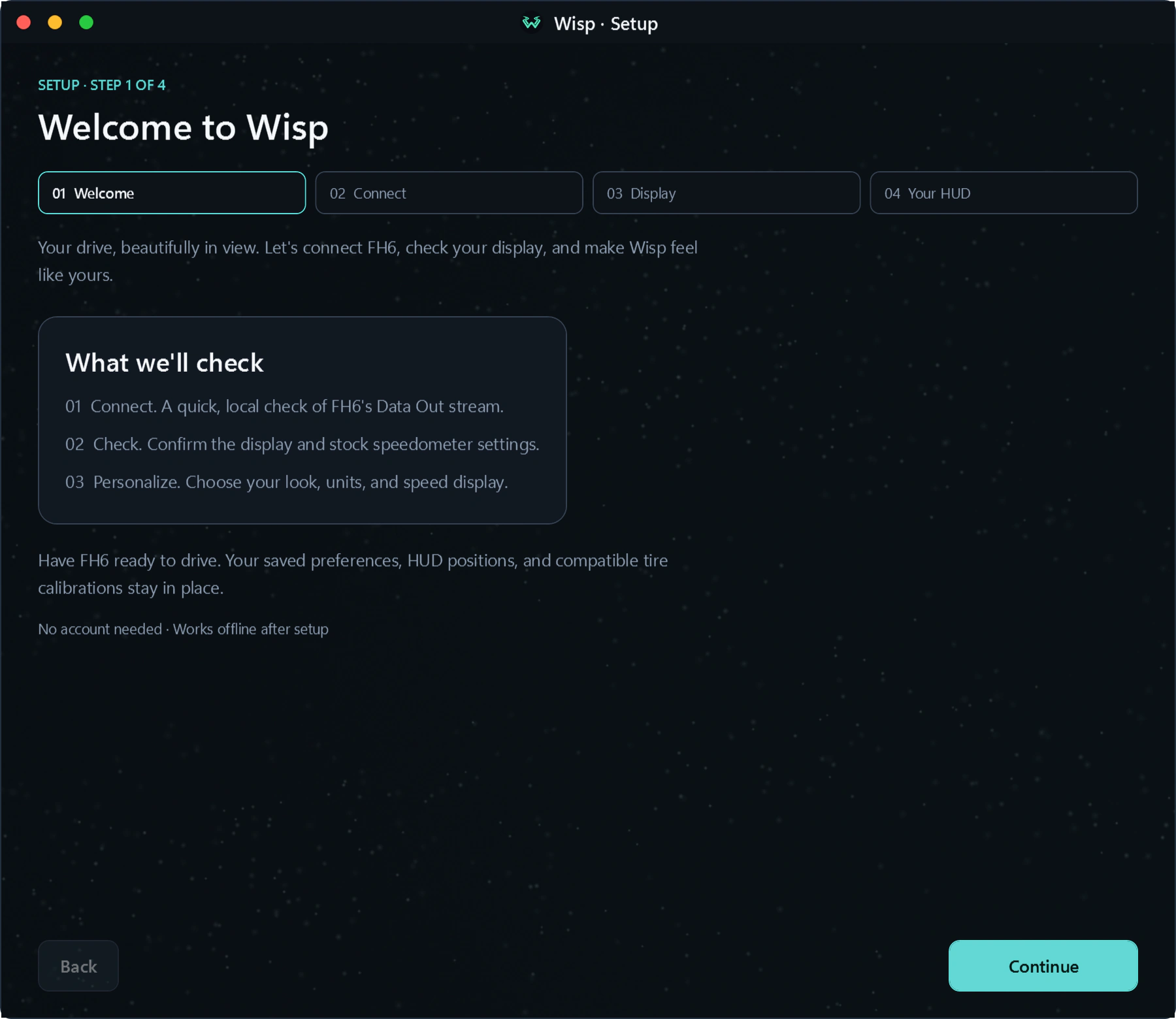
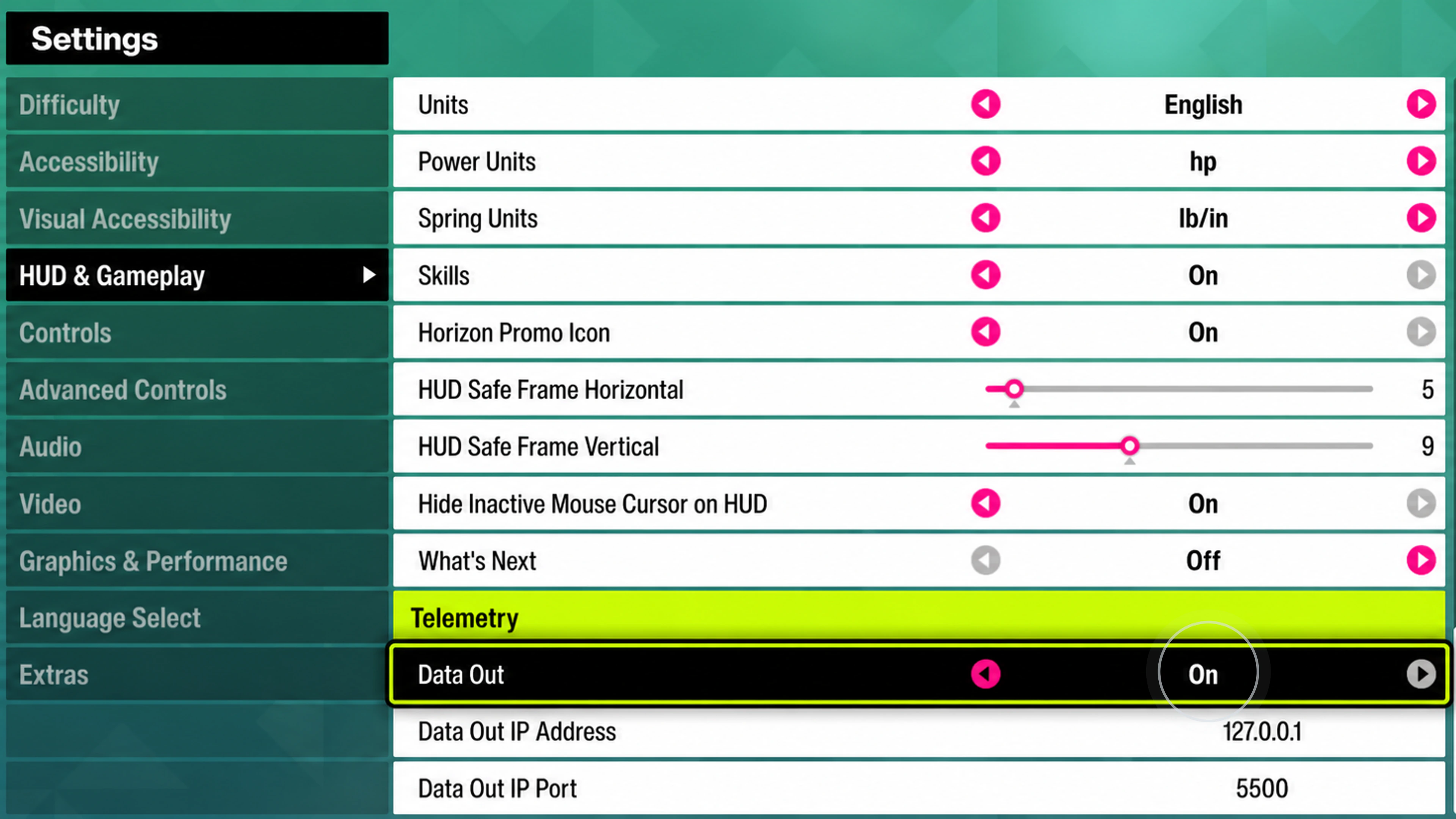
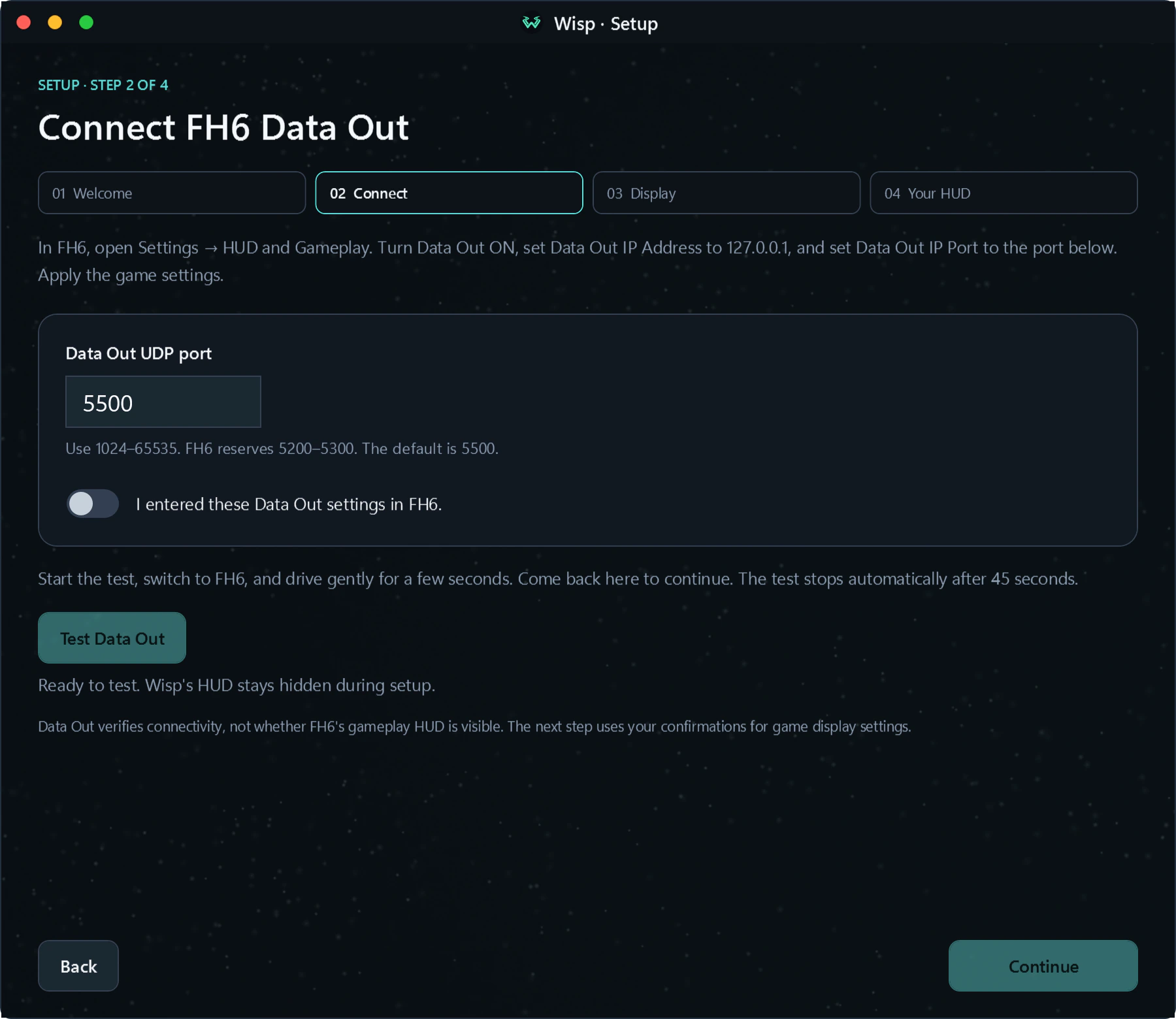
Open Wisp and continue to the setup wizard's Connect step. In Forza, open Settings → HUD and Gameplay and enter:
| Setting | Value |
|---|---|
| Data Out | On |
| Data Out IP Address | 127.0.0.1 |
| Data Out IP Port | 5500, or the port you selected in Wisp |
Apply the game settings. The address sends telemetry to Wisp on the same PC; the port must match in both apps. If you choose a different port, use Wisp's valid range of 1024–65535, excluding Forza's reserved range of 5200–5300.
2. Test live telemetry
Confirm the Data Out settings in Wisp, then select Test Data Out. Switch back to Forza and drive gently for a few seconds. Return to Wisp to review the result and continue. The test stops automatically after 45 seconds.
Once setup is complete, open Diagnostics while driving to check the packet rate and age. A changing speed reading and a non-zero packet rate confirm that live driving data is arriving.
3. Choose your HUD and place it
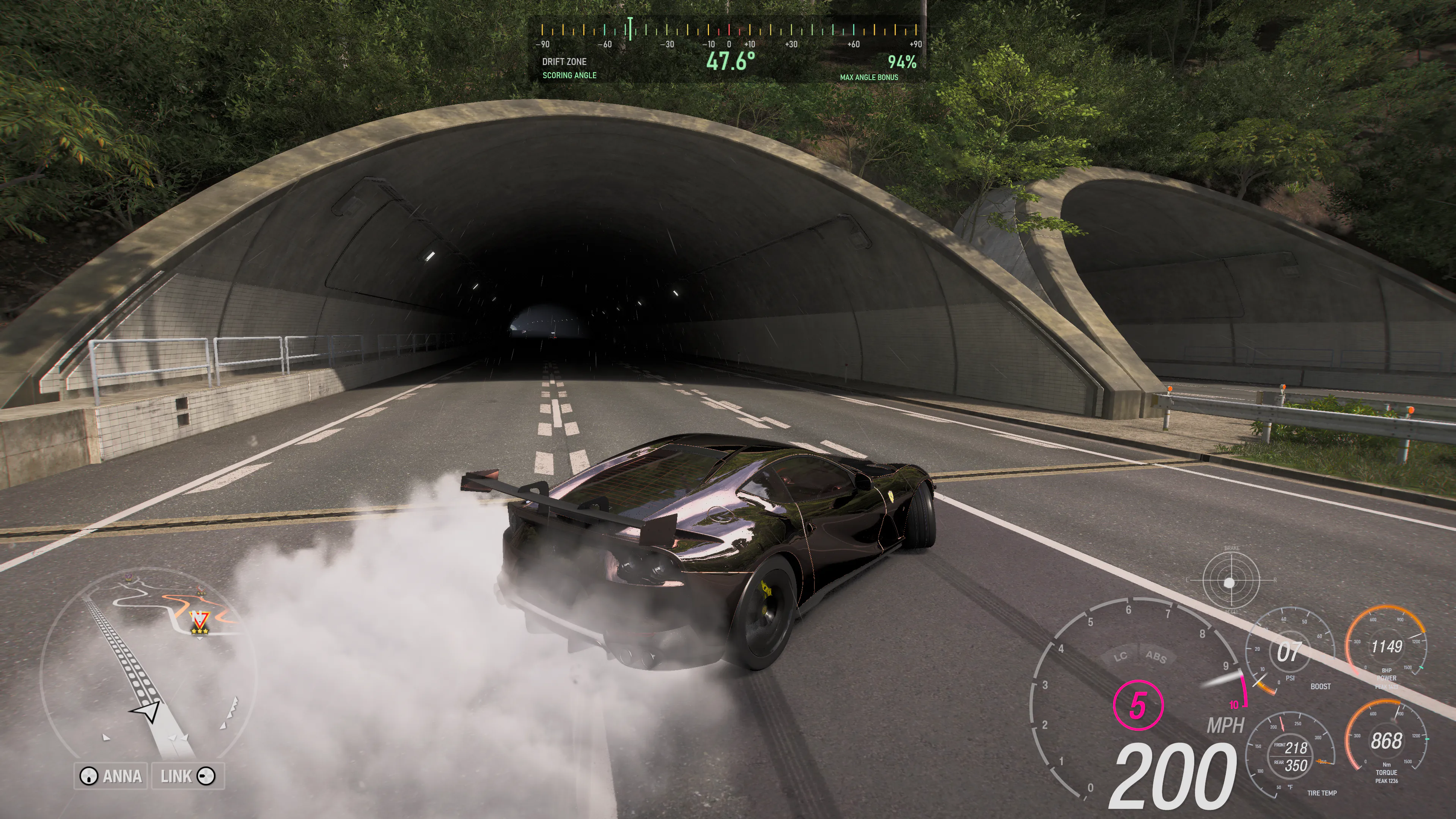
Follow the wizard's display checks, choose your units and HUD appearance, then unlock the overlay, move it into position and lock it again. Use the display-mode guide for the game setting and monitor placement.
Try the tuning and telemetry guide to compare launches, tire heat and drift angle, or save the tune used for your next recorded run.
If the connection test stays idle
- Check that Data Out is On and the game settings were applied.
- Compare the port in Forza with the port shown in Wisp.
- Return to active driving before testing again.
- If another telemetry app uses that port, choose an available port and enter it in both Forza and Wisp.
Continue with connection and HUD troubleshooting.
For the game's telemetry fields, see the official FH6 Data Out documentation.