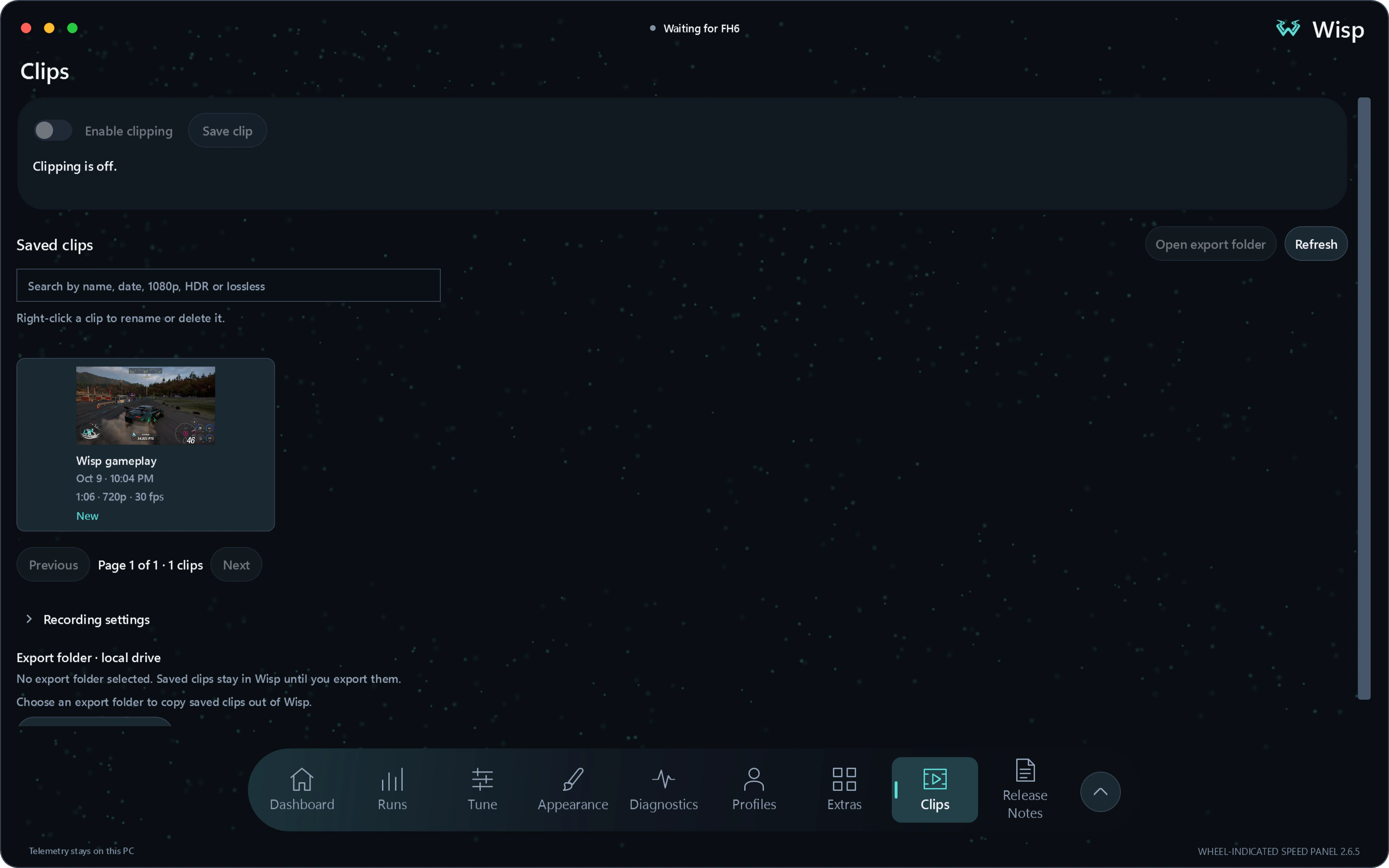
Clips
Save the moment after it happens
Choose a clip length from 30 seconds to five minutes, at up to 4K60. Watch saved clips in Wisp and export an MP4 with your own filename and folder.
Explore Clips Wisp
Wisp Forza Horizon 6 Windows
Customize your gauges, save gameplay clips, inspect locked tunes and compare recorded laps in 3D. Wisp supports Steam and Xbox app / Microsoft Store editions on Windows PC. Explore the drift angle gauge
2D and 3D lap review Explore lap review Explore recorded elevation, compare two laps side by side and color the track by speed, braking, power or G-force.
The installer is not code-signed, so Windows may identify its publisher as unknown. View the SHA-256 checksum.
Keep the whole session
Keep the video, the setup and the driving data from your next session.
Clips
Choose a clip length from 30 seconds to five minutes, at up to 4K60. Watch saved clips in Wisp and export an MP4 with your own filename and folder.
Explore Clips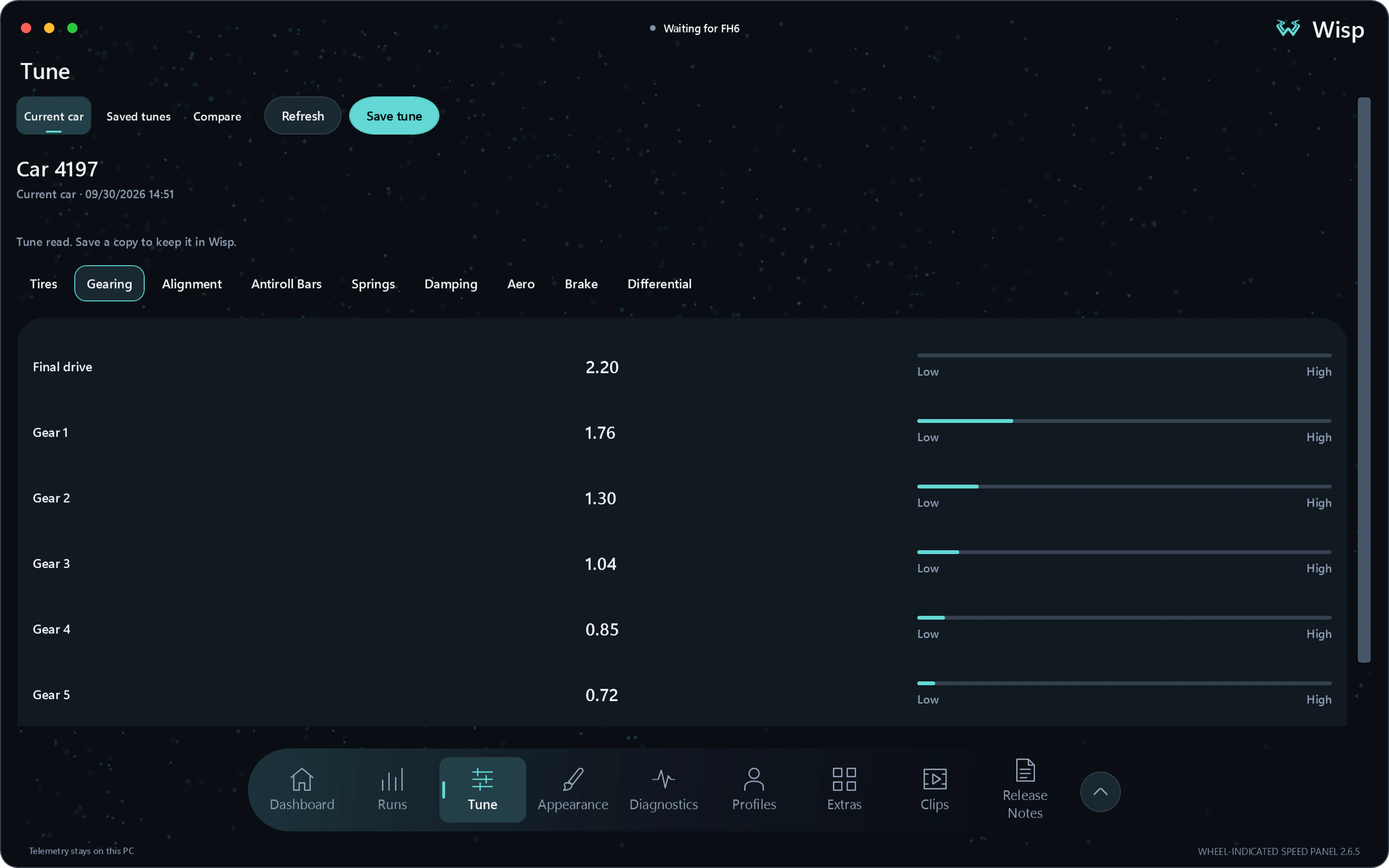
Tune
Read your current tune, including locked tunes, save it with a name and compare it with a saved setup. Keep a copy with a recorded run to see which settings you used.
Explore Tune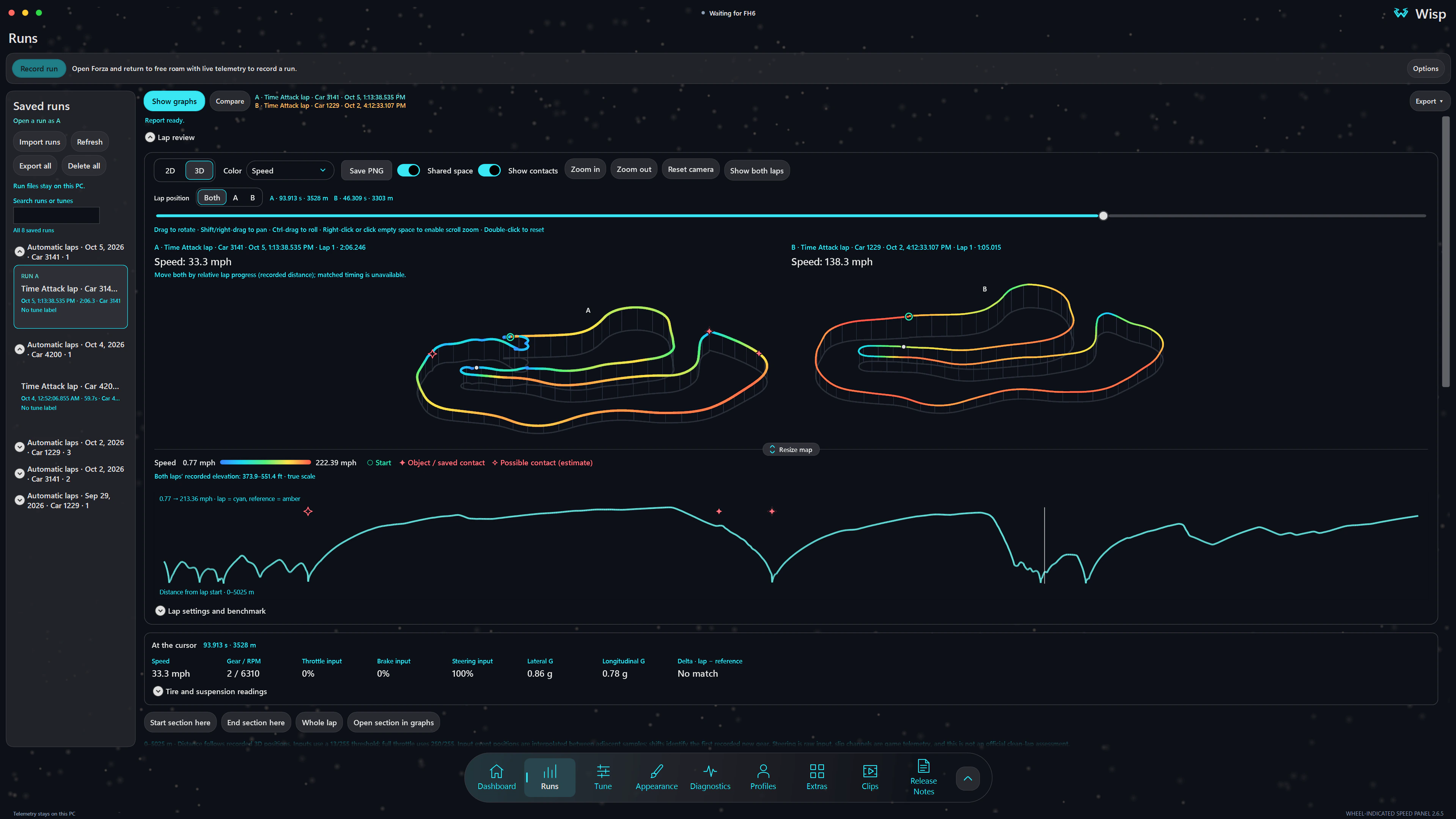
Review recorded laps in 2D or 3D with their elevation. Optional Shared space puts two laps beside each other, with linked or independent cursors. Pin a reference lap and inspect the section where braking, throttle or speed changed.
Explore lap reviewNative gauges
Read the game's reported output beside your speedometer. Boost, tire temperature, power, and torque can attach to the HUD or run as separate overlays, with a shared color palette.
Record up to ten minutes of telemetry, then compare two drives side by side or on the same graphs. Follow speed, inputs, RPM, power, torque and tire temperatures with a shared cursor. Add tune labels and notes, inspect a selected time range, and export your runs.
Enable BHP and torque independently, with Nm or lb-ft for torque. Peak markers track the highest output observed for the current car. Set fixed ranges for each car, or use Set from this run to apply the observed peaks plus 10% once. The ranges stay fixed while driving. Adjustable smoothing starts at 250 ms; negative output is hidden unless enabled.
Fresh installations start in Native Analogue with all gauges enabled and four equally sized supplementary dials. Existing installations keep their saved choices.
Digital mode adds a slim rail beneath the tachometer. Analogue mode adds a dial, with PSI and bar available in both layouts. Optional vacuum pressure includes negative readings after positive boost is detected. Choose custom gauge colors, separate number colors, or the stock appearance. The gauge shows zero on naturally aspirated cars and stays hidden on electric vehicles.
Wisp averages the left and right tire temperatures for each axle. Digital mode places two marker lines in one neutral rail with no fill or redline. Analogue mode uses two solid-color needles in one dial. Fahrenheit and Celsius are both available, and the display holds at 350°F when telemetry exceeds the gauge range.
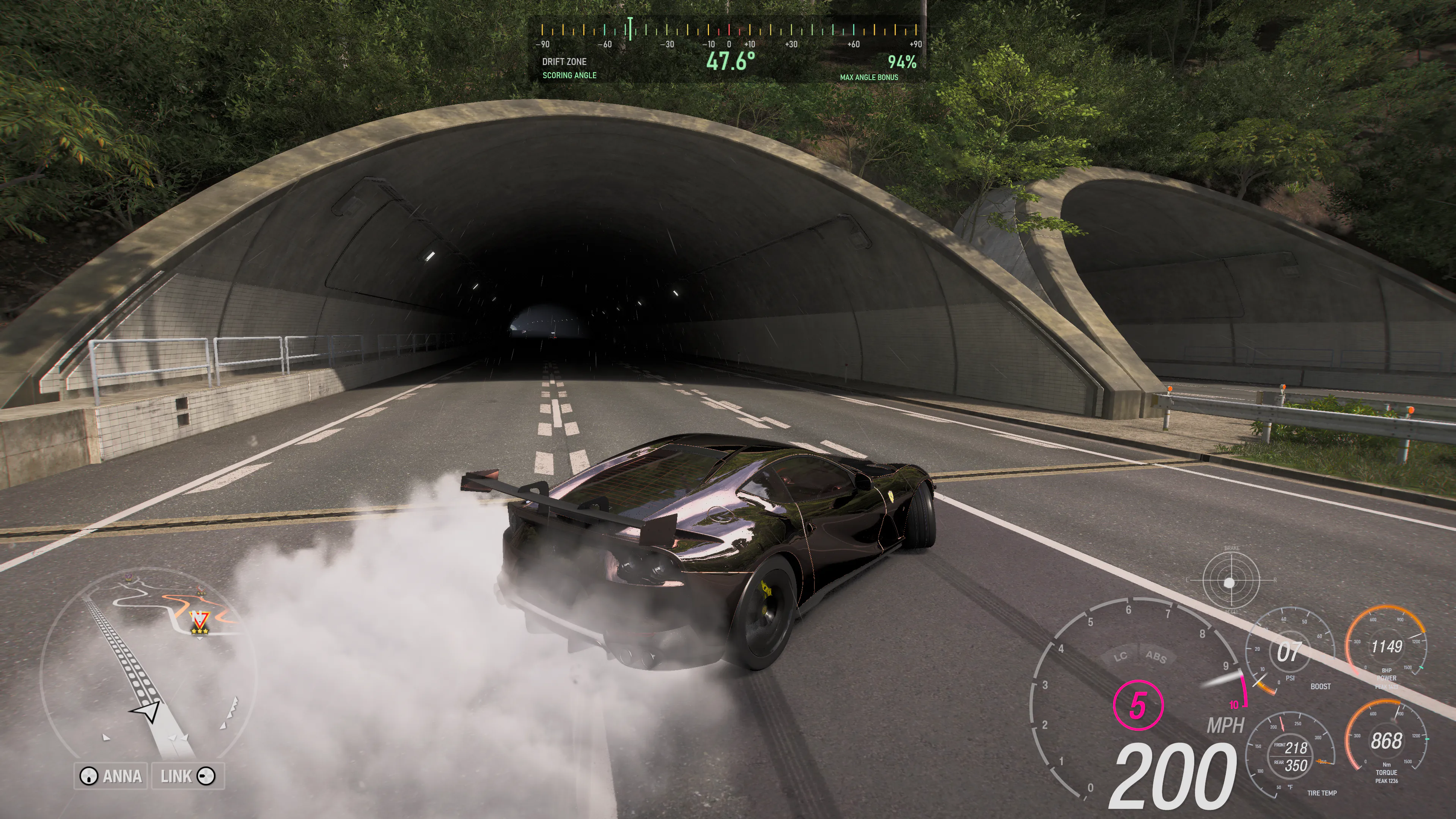
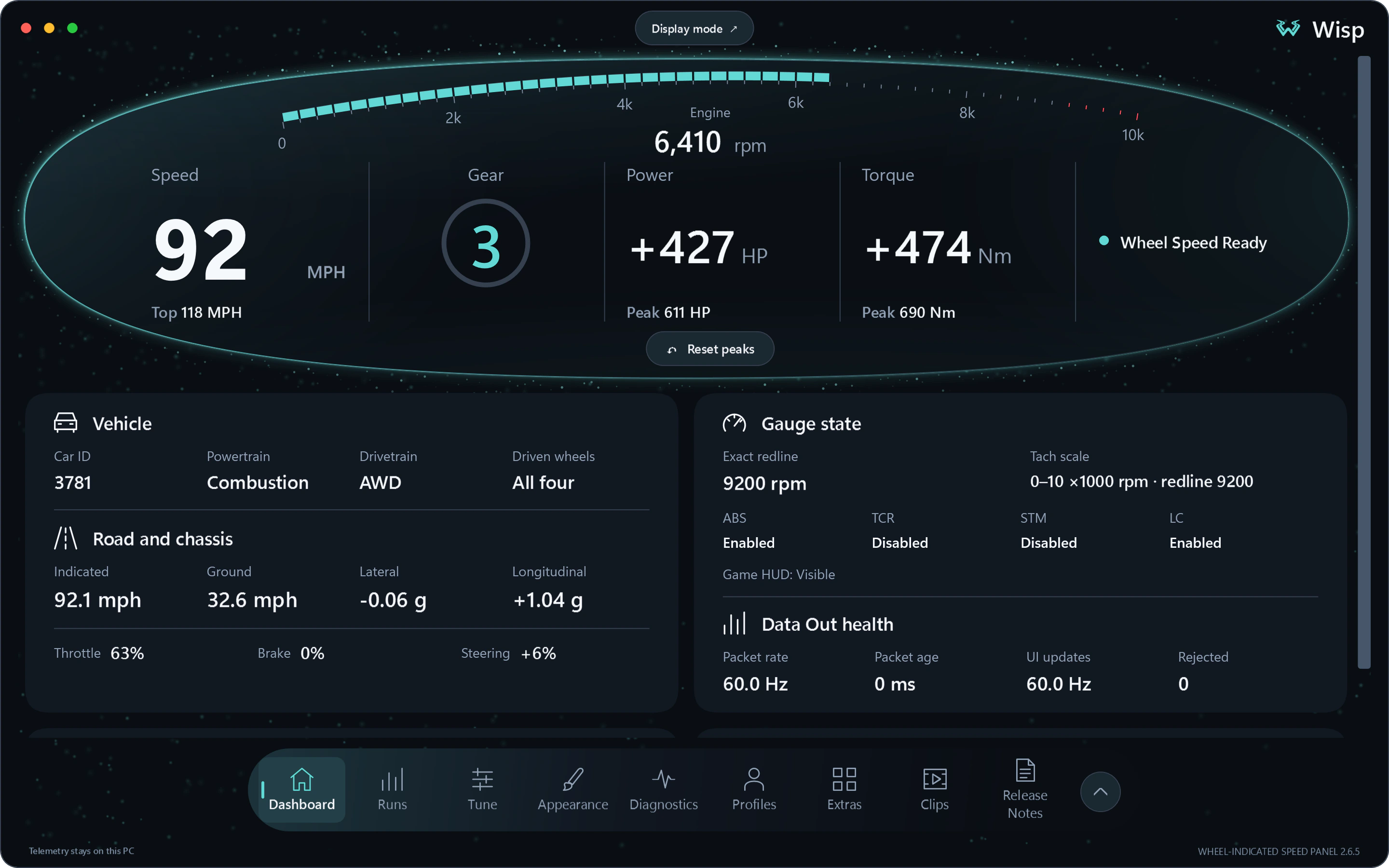
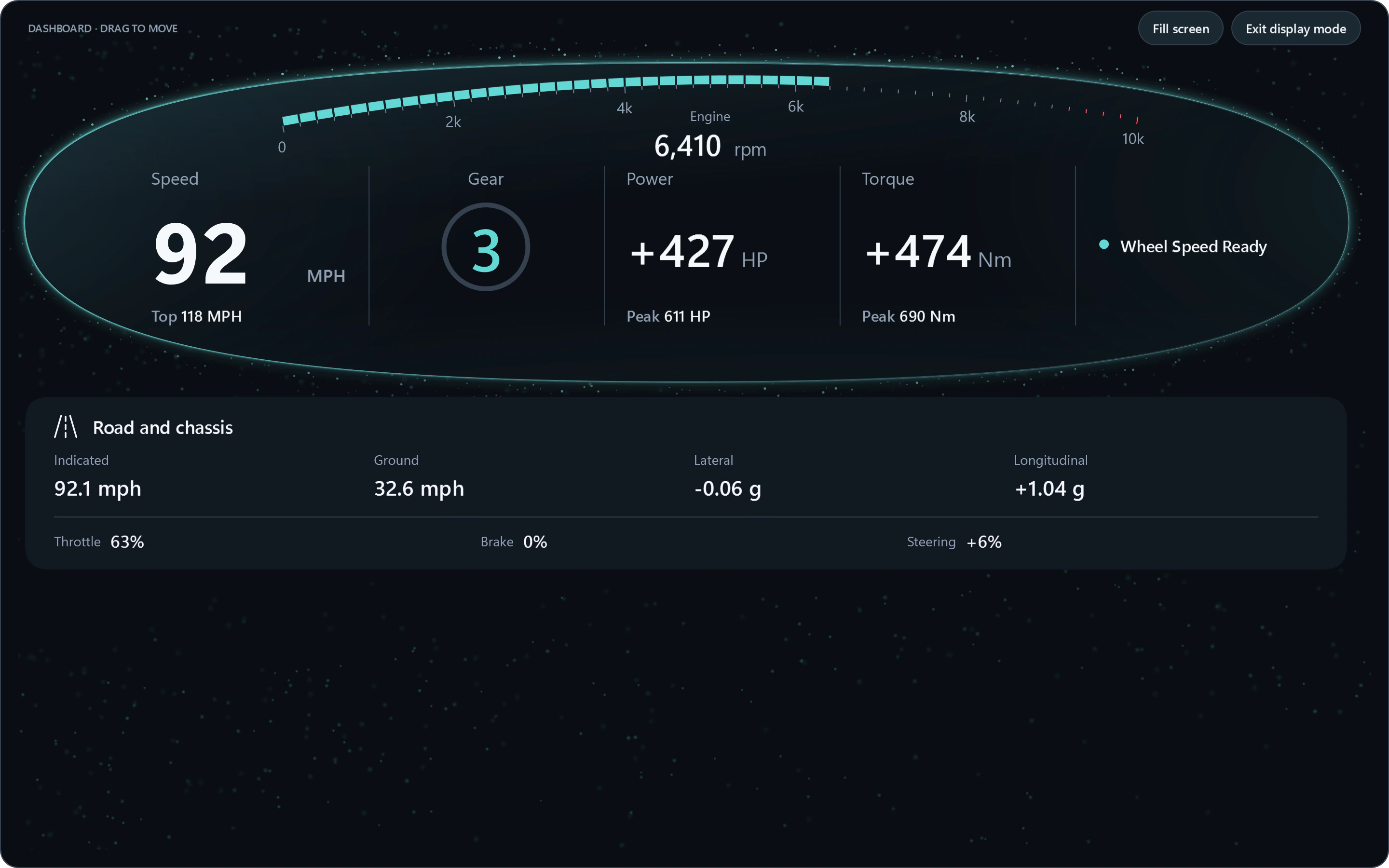
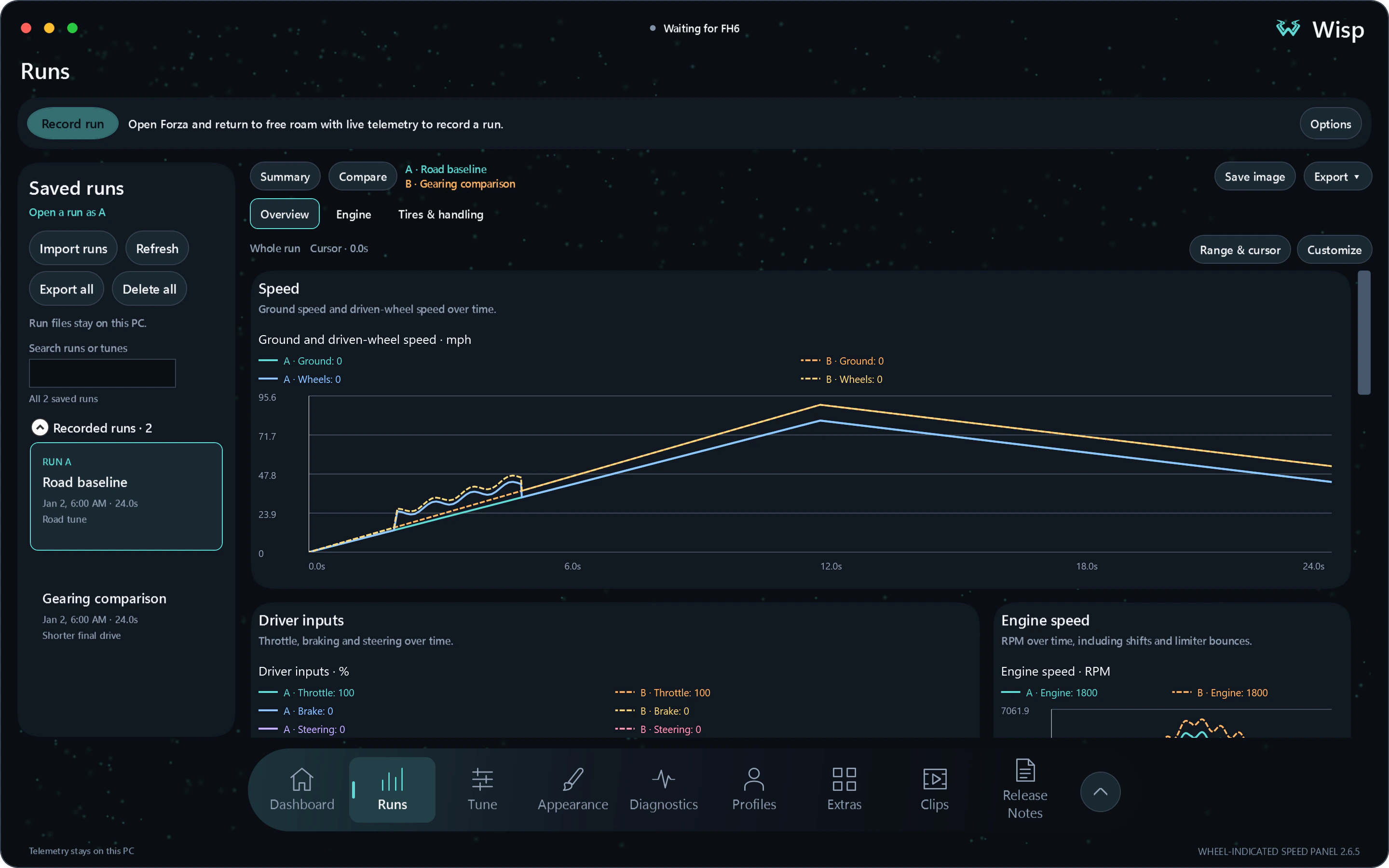
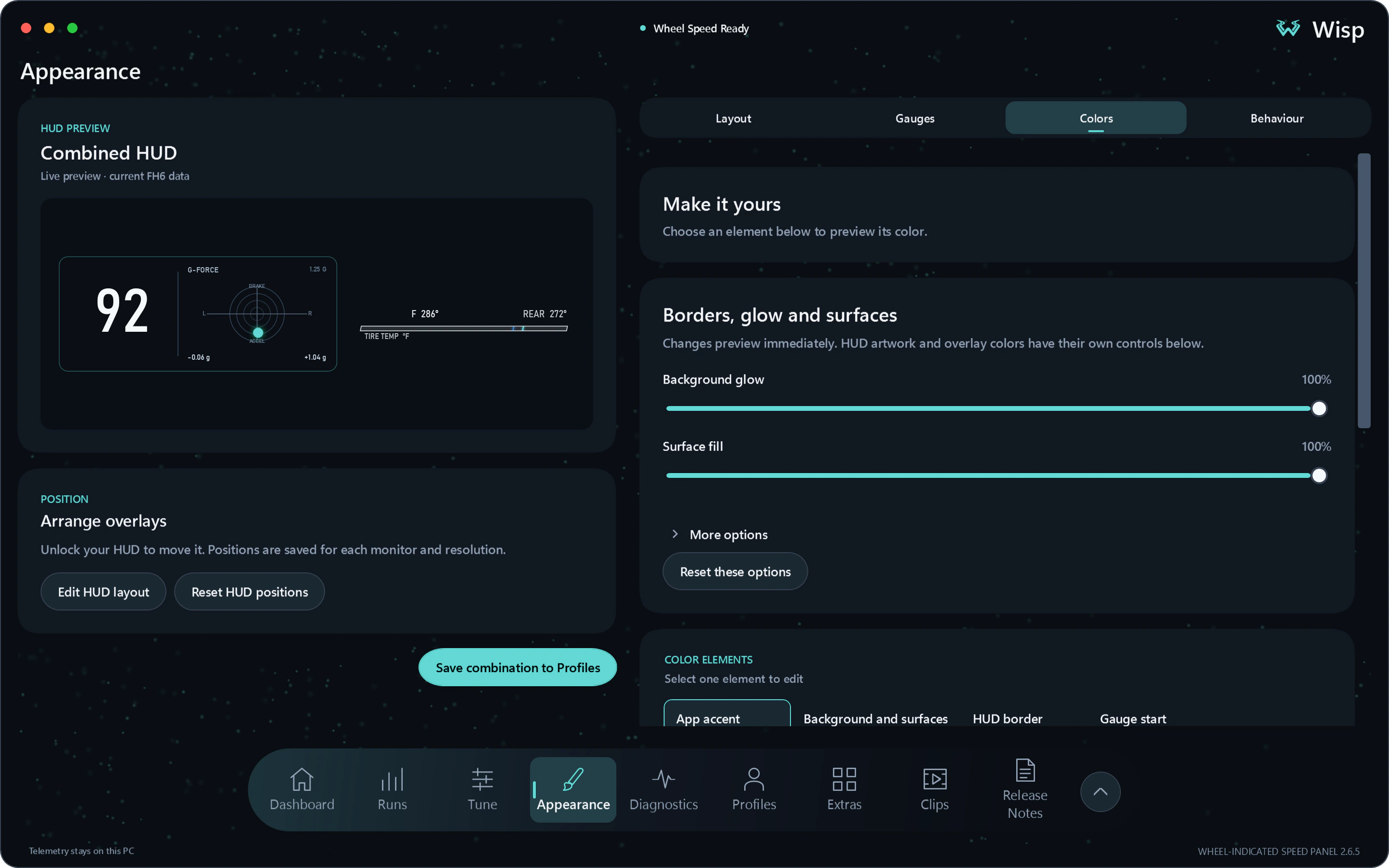
Lap delta and live track map · Beta
Compare your lap with your session best or previous lap at the same place on the track. Lap delta and a live circuit map bring that comparison into your FH6 HUD.
Explore lap delta and the track mapLive readings
Follow wheelspin, boost, tire heat and engine output while you drive. Select a group below to see its readings and where they come from.
Wheel indicated speed
Wisp converts wheel rotation to speed using the learned front and rear rolling radii. Choose a drivetrain and adjust wheelspin to compare the readings below.
RWD selects the rear-axle mean: 78 MPH at 30% wheelspin, 18 MPH above ground speed.
At 30% wheelspin, the driven wheel surfaces travel at 78 MPH while the car covers 60 MPH over the ground.
This demo uses sample values before display smoothing.
Setup walkthrough
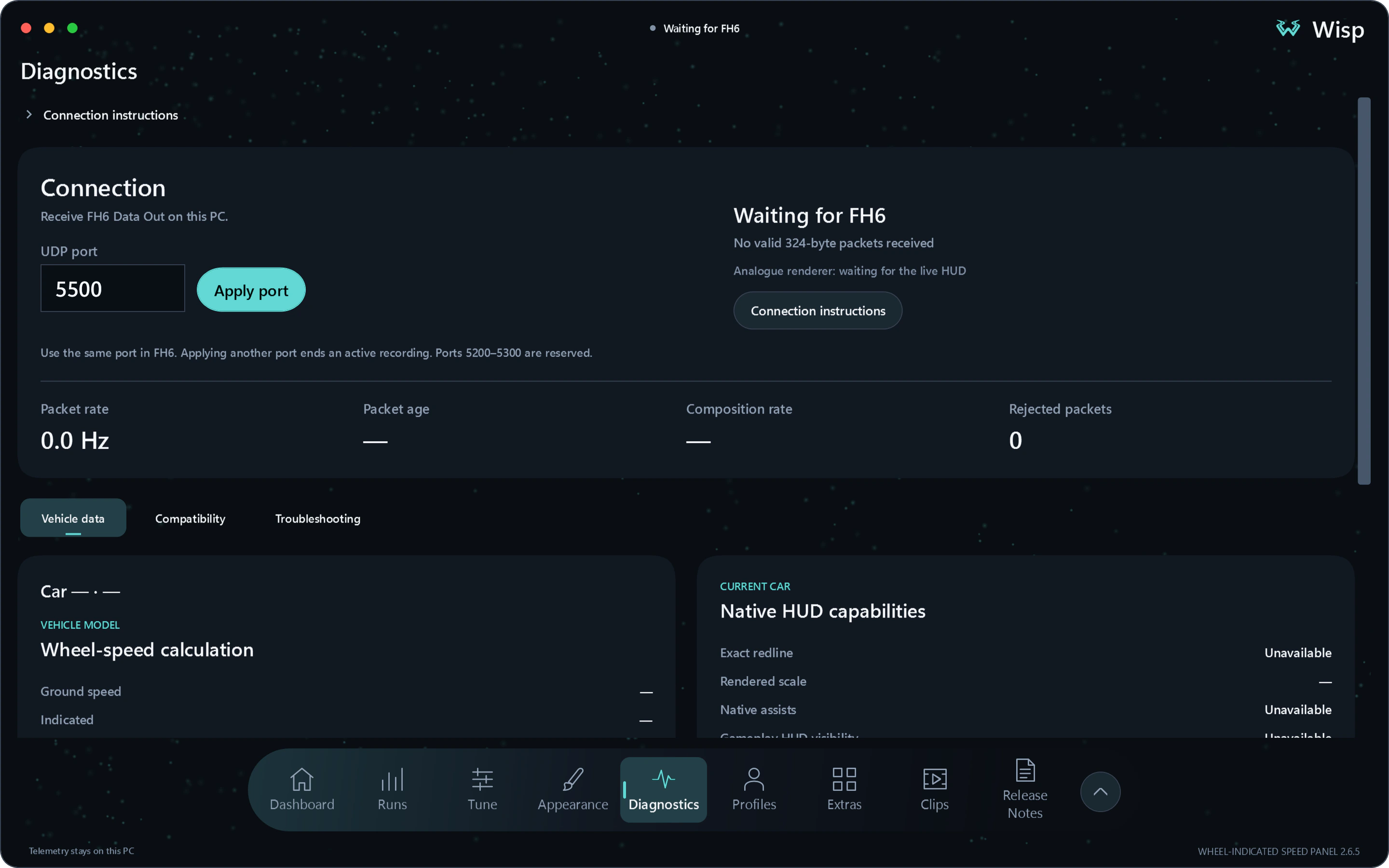
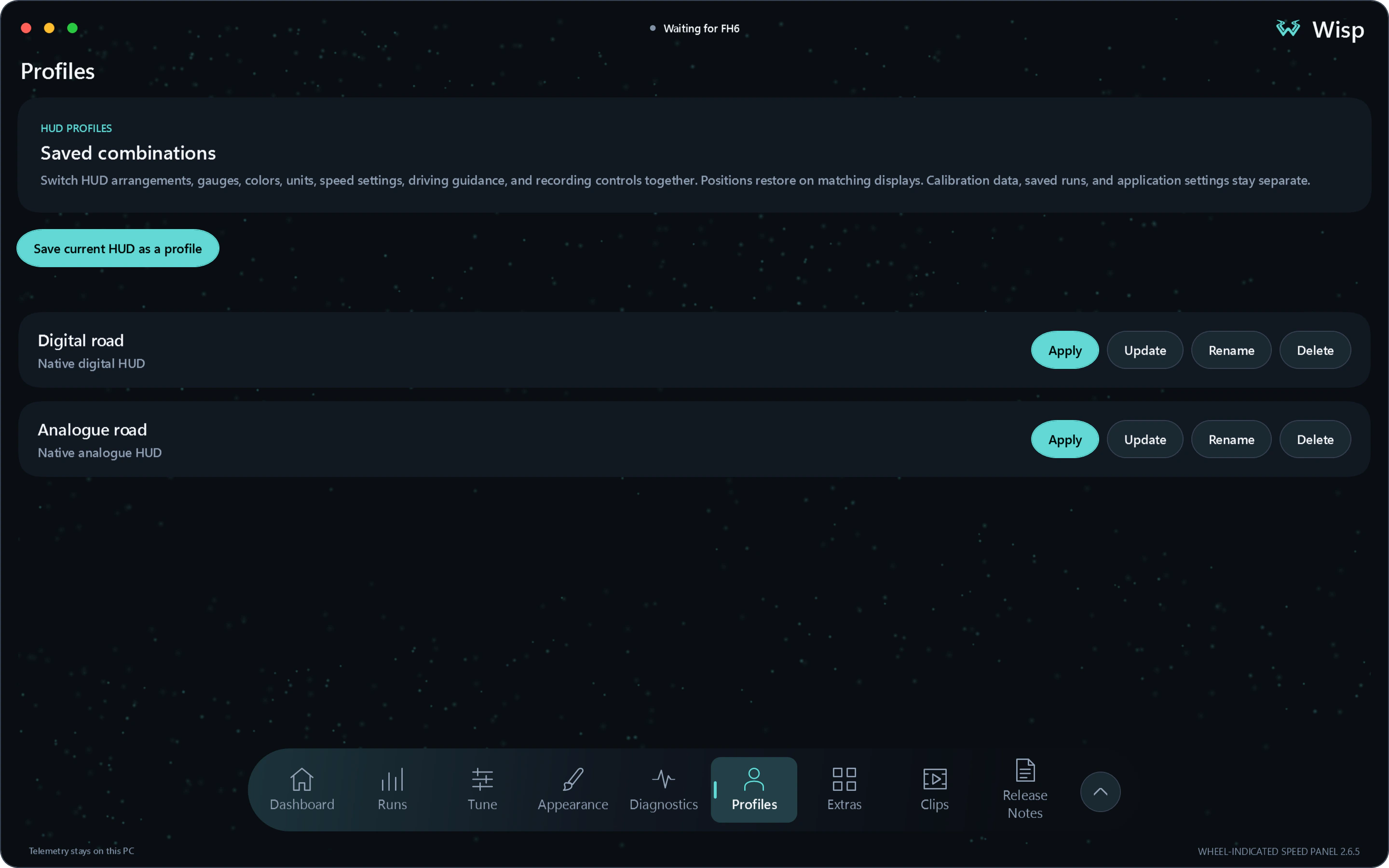
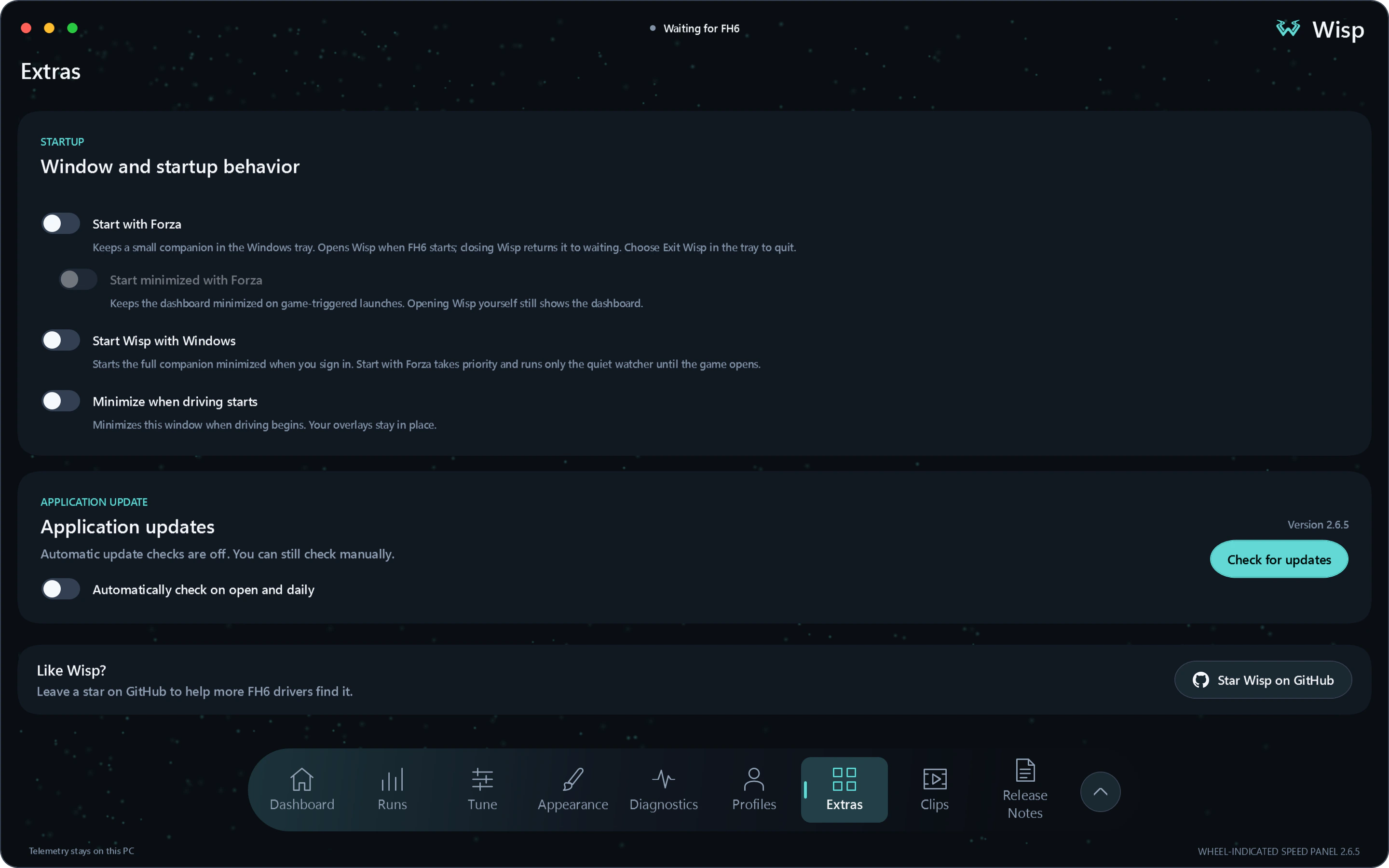
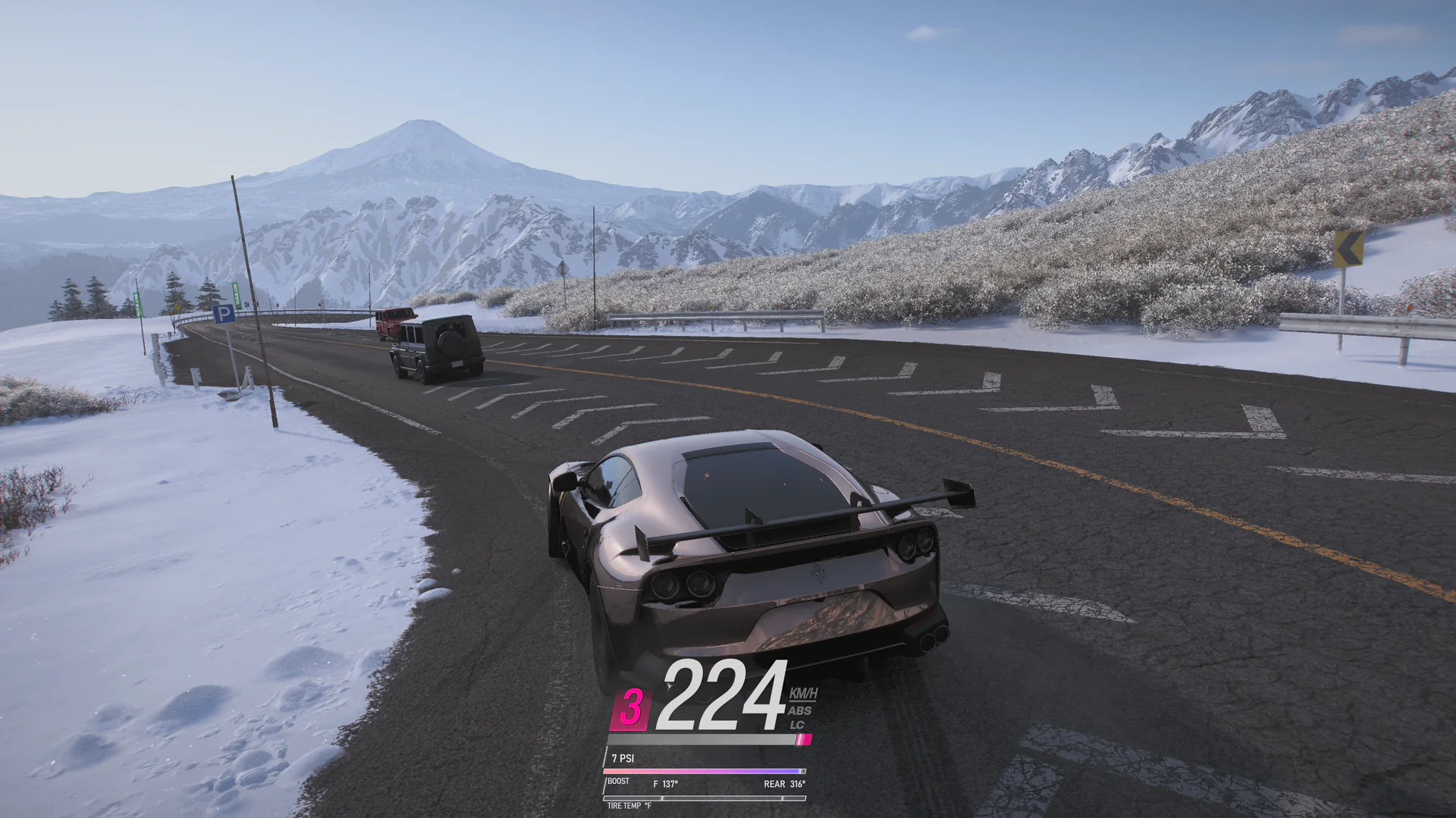
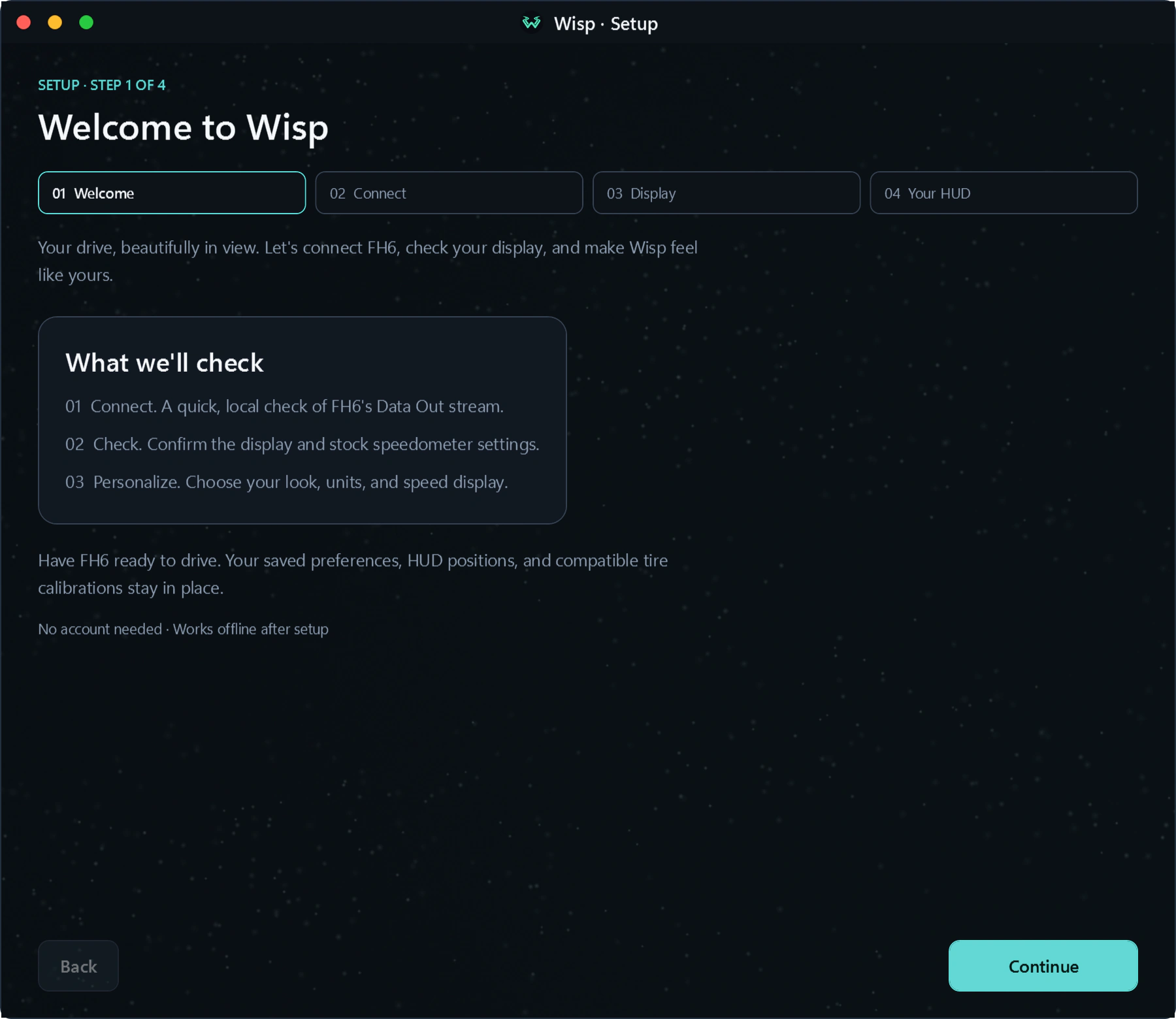
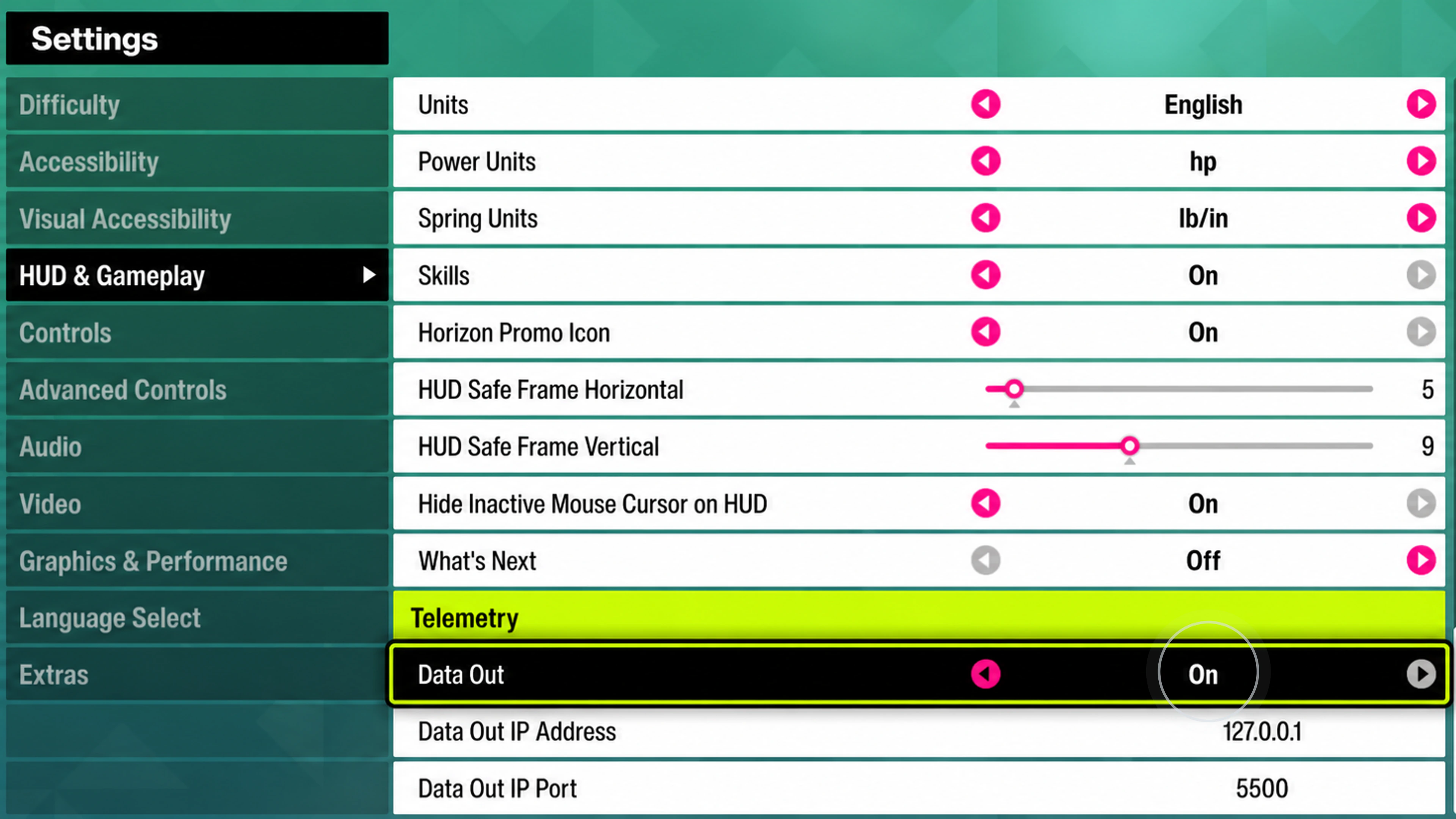
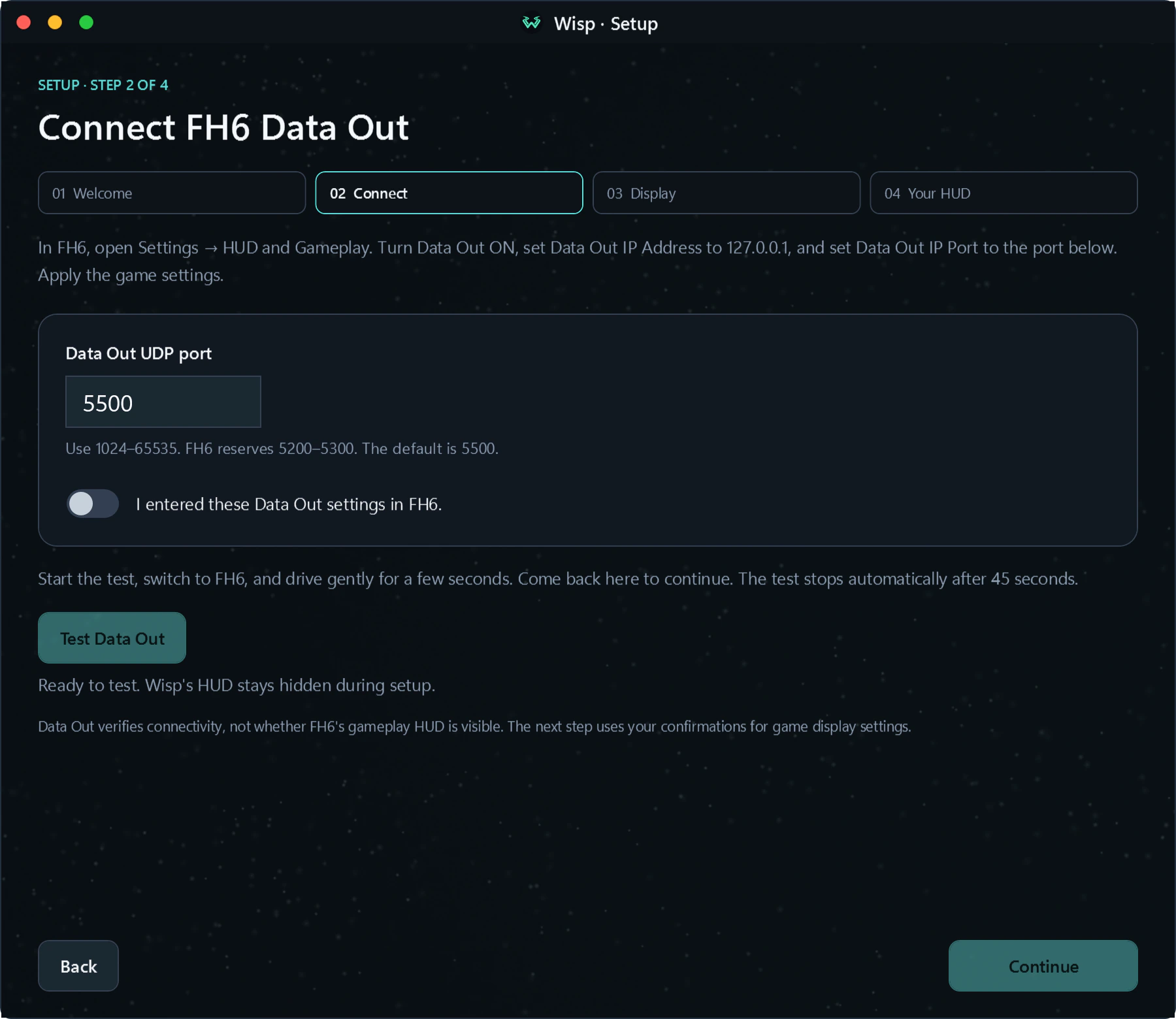
These four screens cover the initial connection and HUD placement. Read the Data Out setup guide.
Local by design
Wisp uses FH6 Data Out for live readings and keeps your clips, tunes and recorded runs on your PC. Some readings, including exact redline and driver-assist states, come from read-only checks of the local game. You choose which files to export and share. Version 2.6.6 adds automatic app health and usage reporting, described in the privacy details.